
How to Overlay PDF on CAD for Revision Checks
Load CAD, add the PDF underlay, match scale — a field workflow for comparing AHJ PDFs to your working model.
Free online tool
PDF & CAD Overlay Compare
Use the tool first, then follow the steps below for detail.
Recommended blogs
In this guide
Introduction
AHJ issued a PDF revision but you have the CAD source? Overlay the PDF under your DWG/DXF, tune opacity and offset, and spot missing devices or shifted geometry.
Half the time the AHJ package is PDF and your working file is DWG. Comparing them means overlaying the sheet under your model or running a quick vector scan on the PDF itself. Different jobs, same review week.
This write-up covers both angles for PDF CAD overlay compare.
PDF review vs CAD review
PDF is what gets stamped. DWG is what gets edited. Overlay puts the issued PDF under your model so you can see a device on CAD that's missing on the PDF, or vice versa. Manual alignment with opacity and offset line up the title block corner and nudge from there.
PDF-only analysis counts vectors and text locally, useful when you only have the submittal PDF and need keyword hits or rough length before the CAD arrives.
When the native DWG shows up, switch to the CAD tools for layers and precise measure.
Revision check without desktop CAD
Load the live CAD model, add the PDF sheet as a semi-transparent underlay, then pan/zoom the CAD view while aligning the PDF with scale and offset sliders. Ideal for catching PDF print errors vs model space.
Where this shows up on a real job
Foreman on site gets Rev 3 on a phone and needs to confirm head count on Level 2 before Monday's walkthrough open the DWG, run PDF CAD overlay compare, no trip back to the trailer PC with the only AutoCAD license.
Owner rep during tenant improvement doesn't own CAD but needs to see alarm device layout share link or walk them through the viewer in a meeting.
BIM coordinator gets consultant DWG Friday at 4pm; Revit import is Monday. Validate or convert over the weekend in the browser instead of waiting for IT to install TrueView.
Commissioning agent building a tag list for sign-off extract text once, filter in Excel, attach to the report.
Plan reviewer comparing two revisions side by side same tool, two browser tabs, or export between steps if your process requires saved files.
Field notes
PDF overlay alignment is manual grab a known corner of the title block, match scale, then nudge. First time takes five minutes; revision compare next week takes one.
Scanned PDFs (pure images) won't vector-analyze. You'll need OCR or the CAD file for real counts.
When the PDF is stamped "APPROVED" but CAD is still Rev 2, trust the contract documents list, not the filename.
Step by step
The tool page has a live workspace at the top same engine as the full viewer. Upload there or use Upload DWG in the header if you want the whole screen.
Free launch limit is 15 MB per file. That's most single-floor fire plans. Campus packs may need to be split by sheet annoying, but still faster than shipping drives.
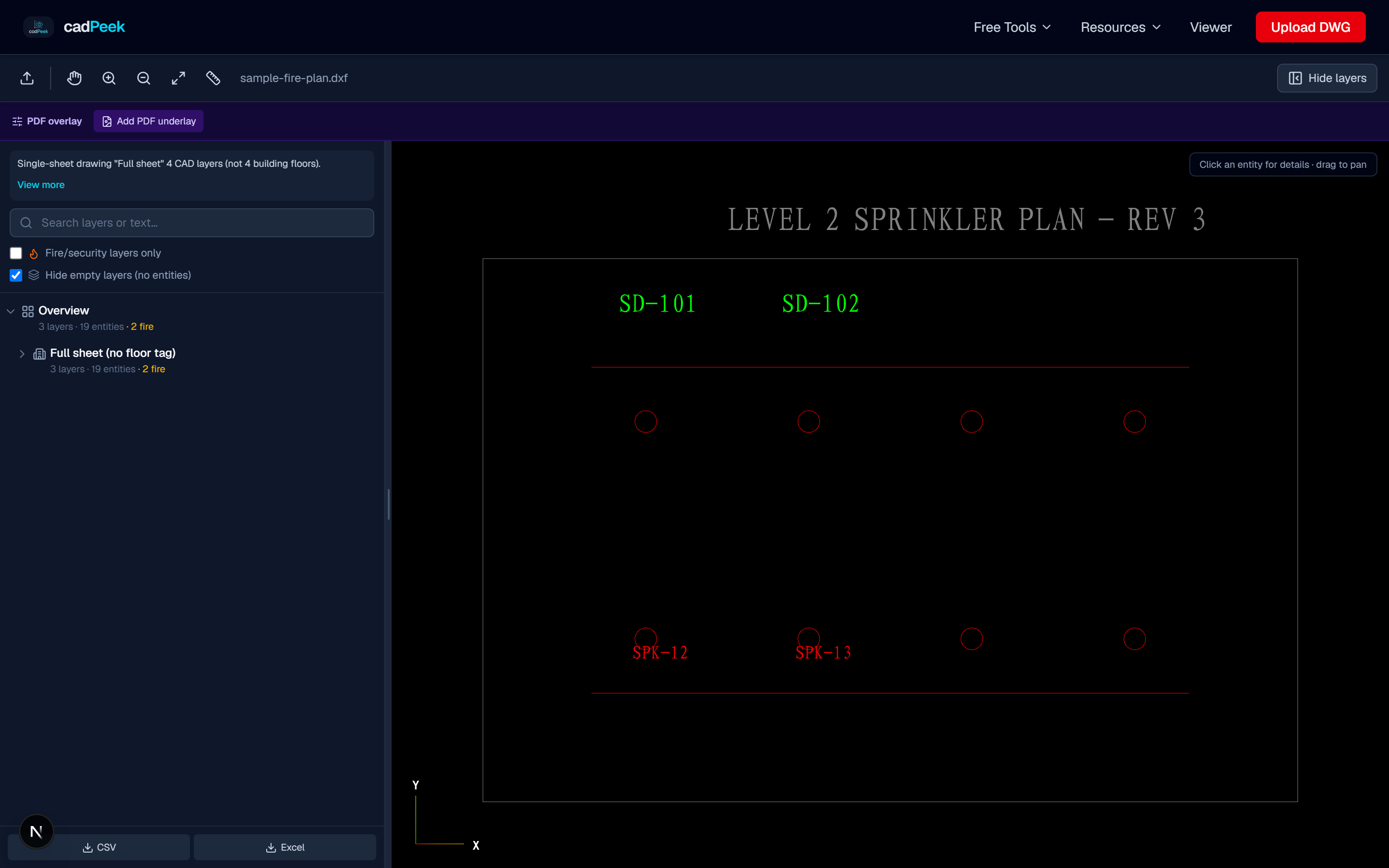
- Open DWG/DXF: CAD geometry loads in viewer.
- Add PDF underlay: Pick the issued PDF sheet.
- Align & compare: Opacity, scale, X/Y offset controls.
File prep checklist
Confirm the attachment opens corrupt zips and truncated downloads happen on mobile hotspots.
Note the AutoCAD version if the inspector asks; file inspector shows it without opening desktop software.
If xref paths are broken, you may see empty sheets until the sender binds xrefs. Browser viewers can't fix missing xref files on your machine.
For PDF CAD overlay compare, work on a copy if your contract requires preserving the received file byte-for-byte in the project folder.
After you're done, archive what you exported (DXF, Excel, report text) next to the share link URL in your project log. Future you will forget which link was which.
If the GC asks "can you send that again?" you already know which revision you processed your filename discipline pays off here.
When in doubt, call the engineer before you re-export. Five minutes on the phone beats a wrong file in the record set.
Things that still bite you
Tianzheng and some plugin DWGs open partial in any web viewer, not just ours. If the sheet looks empty or blocks won't explode, ask for standard DWG/DXF from AutoCAD we've seen that more on imports from overseas consultants than domestic shops.
Always check units before measuring. We've seen metric files opened with feet assumed and spacing "violations" that were just a units mistake.
Keep the sender's original filename when you export. "ProjectX_from_MEP_rev2.dxf" beats "download(1).dxf" when the engineer calls back asking which file you used.
Custom objects may flatten to lines and arcs on export. Most fire plans are 2D lines, blocks, and text that's fine. Weird MEP solids might not convert cleanly.
Sharing is upload-by-choice. If the drawing is sensitive, review locally and only share redacted sheets or specific floors.
Color PDFs from Bluebeam sometimes flatten weird in overlay mode. If alignment looks fuzzy, ask for a monochrome plot PDF for compare.
Do you still need AutoCAD?
Yes, if you're editing geometry moving heads, rerouting pipe, updating the model. No, if you're reviewing, converting, counting, measuring, or sending a link to someone who will never edit.
Autodesk's web viewer needs an account and uploads to their cloud. DWG TrueView is free but Windows-only and a chunky install. CadPeek is aimed at fire plan review: layer filters, block counts, text export, measure without a monthly seat for every person who touches the drawing.
Lots of shops keep a few AutoCAD licenses for production and use browser tools for everyone else in the chain.
Quick answers
Does the PDF auto-align to CAD?
Manual alignment with scale and offset sliders. Auto georeference requires shared title block coordinates use sliders to match known corners.
Bottom line
AHJ issued a PDF revision but you have the CAD source? Overlay the PDF under your DWG/DXF, tune opacity and offset, and spot missing devices or shifted geometry.
Open the PDF & CAD Overlay Compare tool page, drop in your DWG or DXF, and run it. If the file won't open cleanly, try the file inspector or DXF validator first saves time versus debugging a bad attachment downstream.
Bookmark the page if you get repeat work from the same GC or engineer. The related tools in the sidebar cover layer audit, text export, and share links when this job turns into the next one.
Standard US sprinkler and alarm sheets from mainstream consultants usually open fine. Weird plugin files are the exception and those are painful in desktop CAD too.
Guide FAQ
Can I try the tools mentioned in this article?
- Yes. Each article links to free tool pages and the viewer open a DWG/DXF and follow along without AutoCAD.
Is this article updated for 2026?
- We refresh articles when workflows or supported AutoCAD versions change. Check the date at the top of the post.
Do I need a paid plan to follow along?
- Most workflows in our articles work on the free tier. Excel export and larger files require Starter or above.
Where can I ask follow-up questions?
- Use account feedback or email support. Popular questions become new Resource Center guides.
Are Chinese-labeled drawings covered?
- Yes. The viewer detects non-English layer names and renders common CAD fonts used on imported drawings.
Can I share this article with my team?
- Link freely to cadpeek.com/blog full republication requires permission.